Expert Diagnostic Support
 Remote Software Installation
 Secure Shopping
 Contact Support


 Shop by Category


Start with the result: what good diagnostic software actually gives you
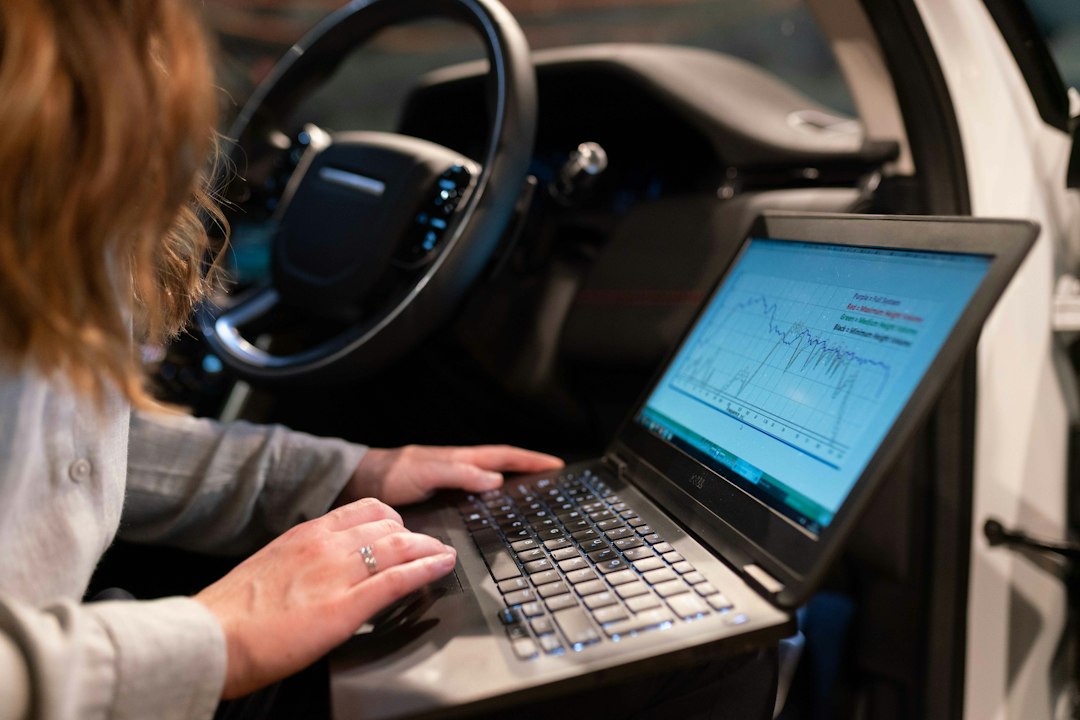
The point of diagnostic software is simple: reliably read fault codes, view live sensor data, run guided tests and capture recordings you can act on. Ignore marketing fluff—don’t obsess over every supported make or a long feature list until you know your target vehicle/equipment and interface hardware. Focus first on compatibility (vehicle model and ECU), the connection method you’ll use (USB, Bluetooth, J2534 device, manufacturer interface), and whether you need bi-directional controls or only read-only logging.
Prepare: match software, hardware and the vehicle
Checklist items to sort before you start the program:
- Confirm the software supports your platform: car, truck, heavy equipment or specific OEM (e.g., Caterpillar, Doosan). If you need OEM-level functions, choose manufacturer software.
- Pick the right interface hardware. For light vehicles a standard OBD-II Bluetooth/USB adapter works; for medium/heavy or OEM tools, use manufacturer or J2534-compliant interfaces.
- Have the machine’s VIN/serial and a charged battery. Many tools require VIN to auto-detect modules.
- Install the software on a supported OS and create any required user account or license activation ahead of connecting to the vehicle.
Install and configure the software safely
Install using the vendor’s instructions and accept only known drivers. Run the software as an administrator on Windows when prompted; many hardware drivers need elevated privileges. During first run:
- Enter license keys or activation codes and update the software to the latest supported release.
- Install drivers for your adapter—Windows will often prompt for a signed driver; use the vendor-supplied package to avoid generic drivers that can miscommunicate.
- Set the communication port (COM/USB/Bluetooth) in software preferences if it doesn’t auto-detect.
Connect and identify the vehicle—step-by-step
With the engine off and parking brake applied:
- Locate the diagnostic port (OBD-II under dash, manufacturer-specific in other locations).
- Plug in the interface, then connect to the computer or tablet and wait for device LEDs to stabilize.
- Launch the software, choose “Connect” or “Identify Vehicle” and enter VIN/serial if requested. Let the software scan modules—don’t interrupt this phase.
Read codes and take the right next step
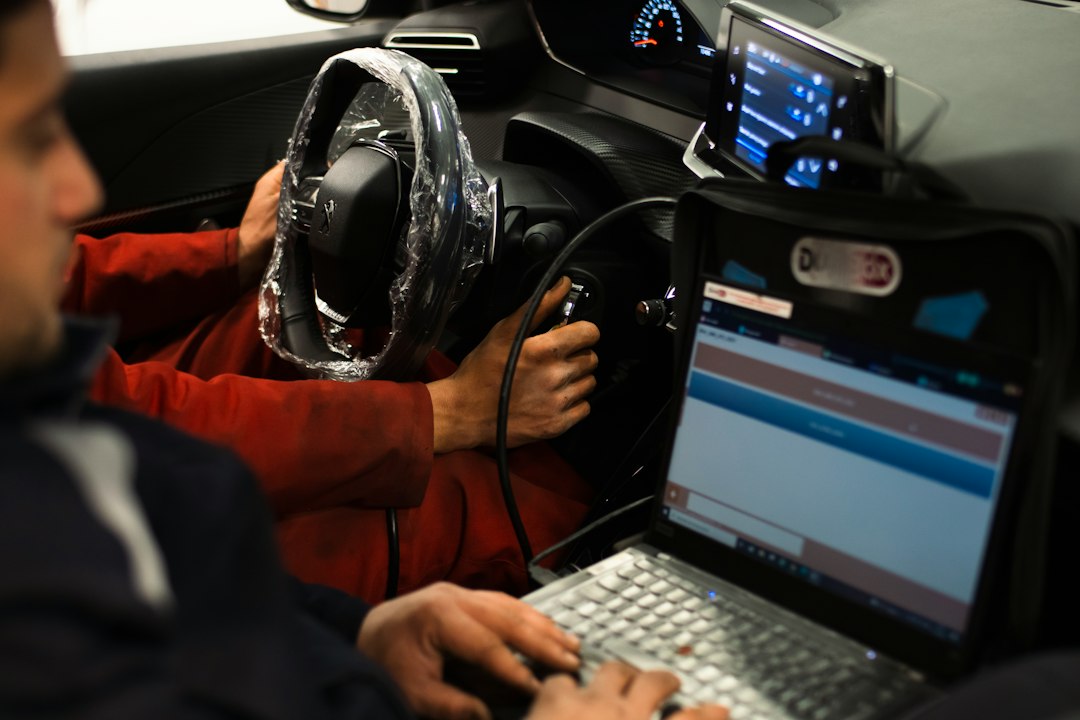
Start with a full system scan. The software returns DTCs (diagnostic trouble codes), freeze-frame data, and module statuses.
- Note: Not all codes mean immediate repair. Check if codes are historic, pending or current before clearing them.
- Use freeze-frame and the related live data to confirm conditions present when the fault occurred (engine temp, RPM, load, voltage).
- If codes are generic (P0xxx), standard repair references apply. For manufacturer-specific codes, consult OEM documentation or the software’s help files for accurate definitions.
Use live data and logs to diagnose reliably
Live data is the difference between guessing and confirming. Open the relevant PIDs (e.g., MAF, O2 sensors, boost, fuel trims) and watch values at idle and under load. Record short runs—data logging helps you compare before/after repairs.
Practical tests to run when you have a suspect sensor or circuit:
- Monitor sensor values while you wiggle wiring or connectors to reveal intermittent faults.
- Perform functional tests if supported: command fuel pump, cycle solenoids, or actuate fans to confirm bi-directional control.
- Log the run to a file so you can analyze trends or share with colleagues.
Take actions: clearing codes, repairs, and validation
Only clear codes after you’ve diagnosed the cause or if you need to confirm a fix. Clearing codes without repair removes valuable history and can turn intermittent issues into harder-to-find problems.
After repair:
- Reconnect and run a full scan to confirm the original codes do not return.
- Use readiness monitors or self-tests to ensure systems complete their checks (important for emissions-related repairs).
- If codes persist, export logs and consider a specialist or OEM service that can interpret deeper module faults.
Troubleshooting common connection and data problems
Problem: Software doesn’t detect the adapter. Fixes: check drivers, try another USB port, ensure adapter firmware is current, confirm COM port matches the software setting, and try another cable.
Problem: Partial module scan or missing modules. Fixes: ensure ignition is in the correct position (some modules are active only with engine running), check fuses, and verify vehicle-specific protocols (CAN HS/LS, J1939) are supported by your interface.
Problem: Intermittent faults not showing up. Fixes: perform longer data logs during representative driving conditions, enable pending code capture if available, and inspect wiring harnesses for chafe or corrosion.
When to choose OEM vs. aftermarket software
Choose OEM/manufacturer software when you need factory-level functions (ECM reprogramming, ABS bleed procedures, immobilizer programming, or complex calibrations). For general diagnostics, fault reading, and basic service functions, high-quality aftermarket software and a J2534-compliant interface often cover most needs at lower cost.
A product recommendation for professional-level diagnostics
If you need wide support for light and medium-duty vehicles and want bi-directional controls and data-logging, consider the top-ranked professional option available in our catalog.
Security and legal notes
Only connect to vehicles you own or are authorized to service. Be cautious when writing to ECUs—flashing or programming requires correct files and can brick modules if interrupted. Always follow the manufacturer’s safety steps for immobilizer or reprogramming actions.
- Confirm software supports the vehicle make and ECU model.
- Verify you have the correct interface and drivers installed.
- Record VIN/serial and battery voltage before starting.
- Run a full scan and capture live data logs for troubleshooting.
- Don’t clear codes until repairs are completed and validated.
Good diagnostic work begins with matching the right software and hardware to the vehicle, then using scans, live data and controlled tests to confirm faults before clearing codes. Invest time in correct setup and logging—those steps save hours later.
Do I need OEM software to read codes?
No—many aftermarket tools read and clear generic and many manufacturer codes, but OEM software is required for manufacturer-specific programming, module coding, and some advanced bi-directional functions.
Can I use a Bluetooth OBD adapter with professional software?
Often yes for basic scans and live data, but some professional tools require wired USB or manufacturer interfaces for stability and full protocol support.
Why won’t a code clear permanently?
Persistent codes usually indicate the root cause remains (faulty sensor, open circuit, module problem) or readiness monitors need more drive cycles; re-scan and log to find the underlying issue.
Diagnostic Products Related to This Guide