
 Expert Diagnostic Support
 Remote Software Installation
 Secure Shopping
 Contact Support


 Shop by Category


Quick answer: what automotive diagnostic software does and when you need it
Automotive diagnostic software reads a vehicle’s control modules (ECUs), shows stored trouble codes, displays live sensor data, runs built-in tests (actuators), and—on dealer-level packages—performs programming, adaptations and module coding. Use it when you want accurate fault identification, to monitor live data for troubleshooting, or to perform service procedures that a basic code reader can’t do.
How the system works in plain terms
The software runs on a laptop, tablet, or phone and communicates with the vehicle via an OBD interface (Bluetooth/Wi‑Fi/USB adapter or manufacturer interface). When connected it requests data from ECUs using standard OBD protocols or manufacturer-specific commands; the software interprets fault codes, shows live streams (RPM, temperatures, fuel trims, etc.), and triggers special tests.
Which type of diagnostic software fits different users
Pick by goals, not just price:
- Casual DIYer / basic repairs: A multibrand OBD2 app or PC package that reads/clears codes and shows live data is enough. It helps diagnose misfires, O2 sensor faults, and simple emissions-related problems.
- Advanced home mechanic: Look for multibrand software with enhanced features—graphing, freeze‑frame, PID logging, and some actuator tests—so you can compare sensors over time and run more complete diagnostics.
- Professional or brand-specific work: Factory (dealer-level) or dedicated brand software gives full module access, module coding/programming, immobilizer work, and manufacturer service functions. These are necessary for ECU reflashing, adapting new parts, or complex security procedures.
- Fleet, truck, or heavy equipment: Choose software designed for heavy-duty protocols and larger vehicle networks; general OBD2 apps won’t cover J1939/J1708 bus commands or proprietary systems.
Core features to compare when choosing software
Evaluate these practical features before buying:
- Supported vehicle makes and years — multibrand vs. manufacturer coverage
- Functions: read/clear DTCs, live data, freeze frame, actuator tests, adaptations, coding, programming
- Hardware compatibility — which OBD interface/adapters are supported
- Usability — intuitive data display, graphing, and help text for codes
- Updates & support — frequency of vehicle database updates and technical support options
- Platform — Windows-only, mobile apps, or cross-platform
Practical trade-offs: multibrand vs. factory/dealer software
Multibrand software (like general EOBD tools) gives broad coverage and is usually cheaper; it’s ideal for shops that work on many makes or DIYers. Factory software or brand-specific packages reach deeper into modules, unlocking programming and immobilizer functions but cost more and often require special interfaces.
How to get started safely and effectively
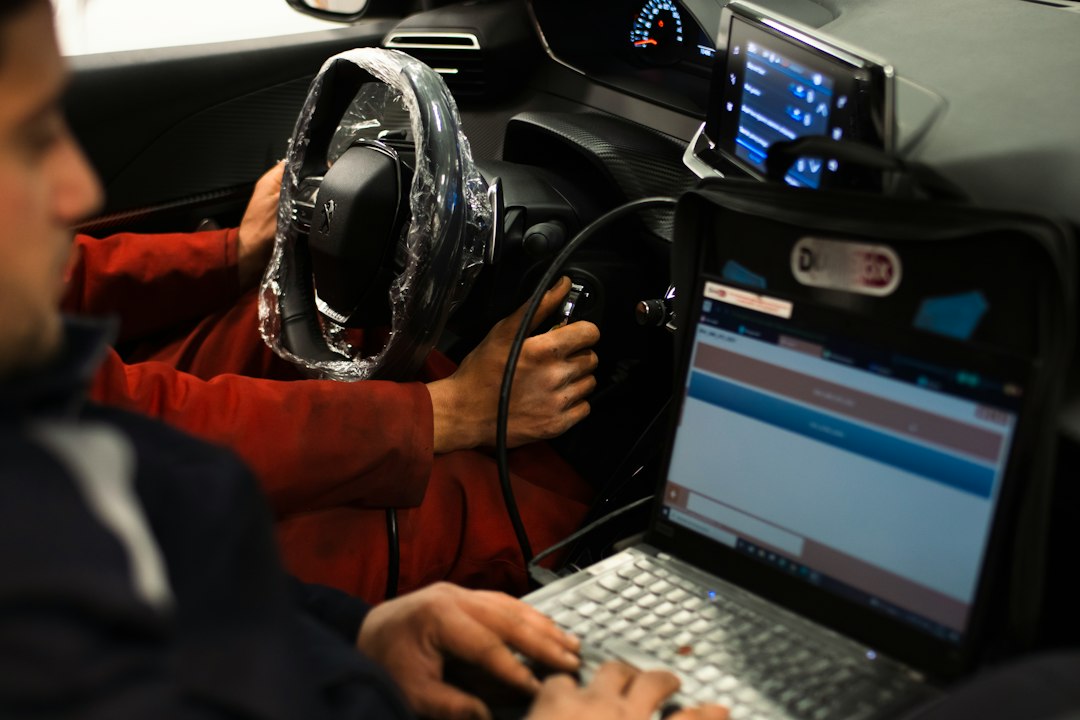
Start by defining the task: read codes and clear CEL? Monitor a sensor? Program a new ECU? For reading and basic diagnostics you need: a compatible OBD-II adapter, the right software, and a laptop or tablet. Follow these steps:
- Check compatibility list for your vehicle and the software.
- Buy or borrow a recommended interface (many packages list compatible adapters).
- Connect with the engine off, then start the engine and let the software establish communication.
- Read stored and pending codes, review freeze‑frame data, then watch live parameters while you reproduce the fault condition.
- Use manufacturer service procedures when performing programming or adaptations; these are not interchangeable between brands.
One product recommendation for most beginners who want reliable multibrand functionality
If you’re starting and expect to work across several passenger-car brands, consider a high-ranked multibrand solution that offers live data, actuator tests and regular updates. It balances capability with price and is the most flexible first purchase.
Common pitfalls and how to avoid them
- Buying “universal” software without checking vehicle coverage — verify the exact model/year support.
- Assuming any Bluetooth adapter will work — cheap adapters sometimes fail to support advanced commands. Stick to recommended interfaces.
- Using coding/programming features without backups — always back up module data and follow the manufacturer’s sequence.
- Relying solely on DTCs — use live data and guided tests; the same code can have different root causes.
When to call a dealer or specialist
If the repair requires ECU reflashing, immobilizer reprogramming, crash-data resets, or manufacturer-level security procedures, a dealer or specialist with factory software and authenticated access is the safer choice. Also consider professionals for intermittent faults that need extensive road-testing and scope diagnostics.
Next steps: buying checklist and learning resources
After you decide which category of software fits your needs, plan for the hardware, license updates and a learning curve: start with reading real-time data, then practice interpreting common P-codes and freeze frames before attempting adaptations or coding.
- Confirm software supports your vehicle make, model and year.
- Choose a compatible OBD interface recommended by the software vendor.
- Ensure you have a Windows laptop or supported mobile device if required.
- Back up any module data before running coding or programming operations.
- Have basic service manuals or wiring diagrams available for complex diagnostics.
Automotive diagnostic software ranges from simple OBD2 code readers to dealer-level suites that program ECUs. Match your choice to the work you plan to do: multibrand for broad, everyday diagnostics; factory software for programming and brand-specific service. Verify compatibility, use the right interface, and proceed cautiously with module programming.
Can a basic OBD2 app fix my car?
Not by itself. It can identify codes and show live data that guide repairs, but the actual fix still requires mechanical work or parts replacement.
Do I need dealer software to clear a check engine light?
No—clearing generic codes is possible with multibrand tools. Dealer software is required when clearing manufacturer-specific faults tied to programming or security systems.
Are mobile apps as good as PC software?
Mobile apps are convenient for basic scanning and live data; PC software often provides more advanced diagnostics, graphing, and better support for large datasets or programming tasks.
What adapter should I buy with diagnostic software?
Use the adapter recommended by the software vendor; avoid generic cheap adapters for advanced functions, and prefer USB or high-quality Bluetooth/Wi‑Fi units for stability.
Can diagnostic software damage my vehicle?
Improper use of programming or coding functions can cause configuration problems. Read procedures, back up module data and avoid risky operations unless you have the correct tools and instructions.
Diagnostic Products Related to This Guide


