
 Expert Diagnostic Support
 Remote Software Installation
 Secure Shopping
 Contact Support


 Shop by Category


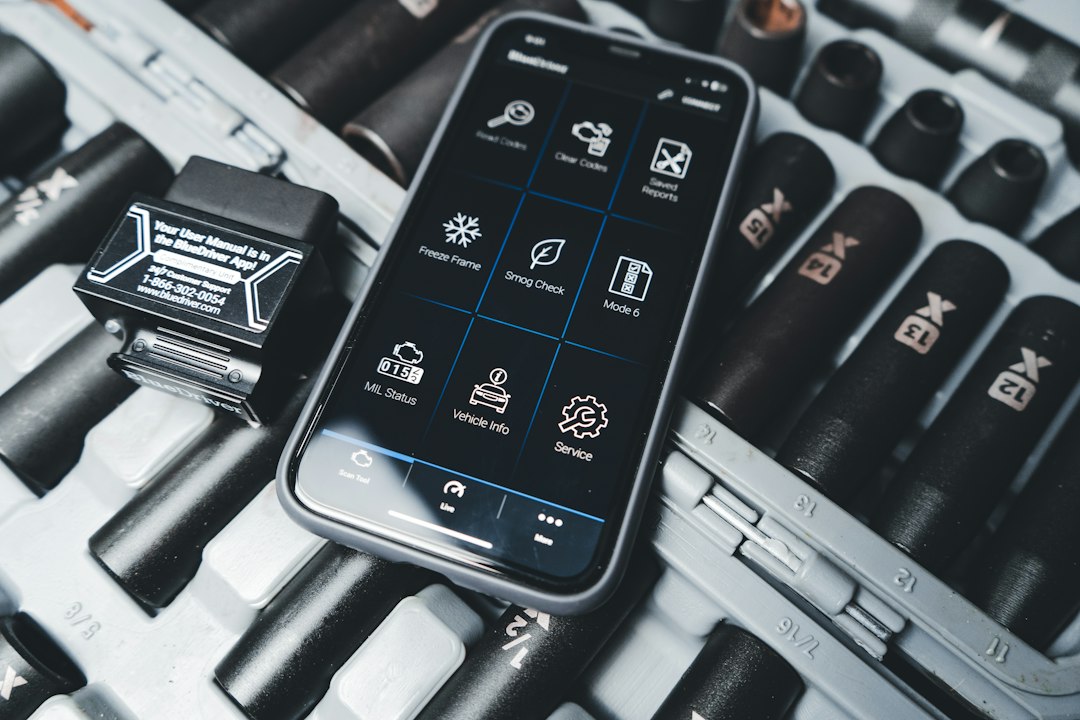
What you’ll achieve: read, interpret and act on live data from a scan tool
If the check engine light sent you to the scan tool, the trouble code only tells half the story. Live data on a scan tool — the real-time stream of OBD2 PIDs (sensor values) — is what shows how the engine, transmission and emission systems actually behave under load, idle and drive. By the end of this article you’ll know which PIDs to display, how to set sample rate and graphing options, when to log for later analysis, and how to turn those numbers into diagnostic decisions.
Quick answer: when and why to use live data
Use live data whenever a stored fault is intermittent, when you need to verify a sensor or actuator response, or to compare expected ranges (RPM, coolant temp, O2 trim, MAP, MAF, TPS) against reality. Live data is fastest path from code to cause: it confirms whether the symptom is mechanical, electrical, or just a misbehaving sensor or communication drop.
Prepare the scan tool and vehicle
Connect the scanner to the vehicle’s OBD port (usually under the dash). Turn the ignition on; for tests involving cranking or driving, follow the scan tool prompts for engine-on or engine-running modes. Select the vehicle or let the tool auto-detect protocol, then open the live data or data stream screen.
- Set the sample rate or update frequency where available — 1 Hz (once per second) is fine for slow-changing values like coolant temp; 5–10 Hz helps for rapid events (RPM spikes, injector pulses).
- Choose list versus graph view. Use list for spot-check numbers; graph for trends and timing relationships (e.g., throttle vs. RPM).
- If the tool supports PID customization, add only the PIDs you need to avoid clutter and slower responses.
Which live-data PIDs matter first
Start with a compact set that answers most troubleshooting questions:
- Engine RPM — confirms if engine is responsive and idle behavior.
- Calculated Load or MAP (manifold absolute pressure) — shows engine load and boost/vacuum.
- Engine Coolant Temperature (ECT) — for warm-up related faults.
- Short- and Long-Term Fuel Trim (STFT/ LTFT) — shows air/fuel compensation and potential vacuum leaks or fuel issues.
- MAF sensor (if equipped) — direct air mass readings used for fueling.
- Throttle Position Sensor (TPS) — accelerator input and throttle response.
- O2 sensor voltage or equivalence ratio — closed-loop behavior and catalytic efficiency.
- Intake Air Temperature (IAT), VIN, and vehicle speed when relevant.
How to interpret common patterns
Watch for these practical, repeatable signs:
- High LTFT (+10% or more) with normal MAF values — suspect fuel delivery (pump/pressure) or clogged injectors.
- High STFT that trims back to normal at higher RPM — often a vacuum leak visible at idle but masked under load.
- Unstable RPM and fluctuating TPS without driver input — check wiring and throttle body or idle air control devices.
- Slow oxygen sensor response or flat O2 readings — aged O2 sensor or exhaust leak; confirm with heater current (if available) or live lambda values.
- MAF reading inconsistent with expected grams/sec at a given RPM/load — clean MAF or inspect intake for leaks.
Use graphs and correlations to find cause
Numbers alone can mislead; the key is timing. Plot RPM, TPS, MAF and STFT together and reproduce the symptom (blip the throttle, idle up, or drive under load). Look for lag between TPS increase and MAF response (intake leak or sensor delay), or immediate MAF jump but no corresponding LTFT change (possible ECM adaptation lag or communication problem).
Logging and post-drive analysis
If the issue is intermittent or happens under road load, log the live stream to the tool’s memory or export CSV to a laptop. Capture a few minutes including the symptom and at least one minute before and after. In post-analysis, use spreadsheet filters or graphing to align events (e.g., fuel trim spike at 3000 rpm during throttle lift).
Troubleshooting when live data looks wrong
- No live data or garbled values: check connector pins and tool compatibility with vehicle protocol; try another OBD port or a different scan tool if available.
- Values stuck at one number: suspect sensor wiring, open circuit, or the ECM reporting a default value; wiggle harnesses while watching live data to detect intermittent faults.
- Very noisy readings: increase sample averaging where available, or smooth the graph; alternatively, move to a higher sample rate to ensure you’re not aliasing short pulses.
When to use bi-directional tests and active commands
After confirming a suspect PID, an advanced scan tool can command actuators (fuel pump relay, purge solenoid, idle control) while watching live data to verify functional response. Use bi-directional operations only with clear safety precautions: park securely, have a helper, and follow the tool’s prompts.
Practical variations: light-duty vs heavy-duty and OEM quirks
Heavy-duty trucks and some modern cars use extended PID sets or manufacturer-specific parameters. If your basic OBD2 reader doesn’t show required PIDs (for example, certain DEF or SCR data on diesels), use a vehicle-specific or heavy-duty tool. For most DIY and technician work the common PIDs described above are sufficient; for full-system coding or ECU-level troubleshooting, a higher-tier bi-directional scanner is appropriate.
Checklist before you start a live-data diagnostic
- Confirm scan tool compatibility with vehicle protocol.
- Charge battery or use a stable power supply during long logs.
- Select and limit PIDs to those needed for the symptom.
- Set sample rate appropriate to the event speed (1–10 Hz).
- Securely mount the tool so you can safely drive if needed.
Use live data to replicate the symptom, focus on a compact PID set, and prefer graphs and logs for timing relationships. If you see abnormal trims or mismatched sensor responses, use targeted tests or a bi-directional command to confirm the failing component before part replacement.
What’s the difference between freeze frame and live data?
Freeze frame is a snapshot the ECM records when a fault sets; live data is continuous real-time streaming useful for reproducing and diagnosing conditions outside that snapshot.
How many PIDs should I display at once?
Keep it lean: 6–8 PIDs for most tests. Too many PIDs slow updates and make patterns harder to read.
Can I use my phone app for live data?
Yes—Bluetooth OBD2 adapters and phone apps work for many diagnostics but may have slower sample rates and limited manufacturer PIDs compared with dedicated scanners.
Why are my fuel trims high only at idle?
High trims at idle often indicate vacuum leaks, PCV issues, or intake gasket leaks that present under low manifold pressure but close up under load.
Should I clear codes before testing live data?
Not immediately. Record baseline live data with stored codes present; after repairs, clear codes and test to confirm the fault doesn’t return.
Diagnostic Products Related to This Guide


